Using the Move Tools
If required, you can translate and rotate the currently selected object or objects in a scene, such as image data, regions of interest, meshes, and annotations.
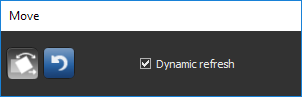
Move panel
|
|
Icon |
Description |
|---|---|---|
|
Translate and Rotate |
|
When selected, the Translate and Rotate tools appear in the selected 2D view. You can use the tools as follows: Translate tool… Drag to move the selected object(s) within the scene.
Rotate tool… Provides controls to rotate the selected object(s) from the pivot position.
NOTE See How to Select Objects for information about selecting multiple objects |
|
Undo |
|
Undoes the translation and/or rotation that is currently applied to the selected object(s). You should note that multiple undo levels are available. NOTE The Undo button can also be used to undo transformations applied through functions such as aligning centroids and registrations. |
|
Dynamic refresh |
|
If selected, other axis representations of the selected object(s) will be updated in real time. If not selected, related MPR views will be updated at the end of a manipulation. |


 Configured Actions for the Translate and Rotate Tools
A number of configured actions and keyboard shortcuts are available for using the Translate and Rotate tools. The default settings for these actions are listed in the following table.
|
Action |
Key |
Mouse |
|---|---|---|
|
Translate down one unit in Y axis |
Page Down |
|
|
Translate up one unit in Y axis |
Page Up |
|
|
Translate object(s) |
|
Left mouse |
|
Translate left one unit in X axis |
Page Right |
|
|
Translate right one unit in Y axis |
Page Left |
|
|
Rotate objects(s) |
|
Left mouse |
See Configurable Actions for information about mapping shortcuts and mouse actions to translations and rotations.